
11 Ways to Fix QuickBooks Database Server Stopped Working
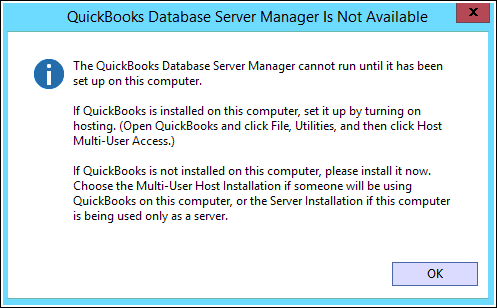
The foremost resolution for the QuickBooks database server stopped working is to restart the server of QuickBooks. This problem happens when the QuickBooks server is not updated or when you are not able to make changes to your company file.
Error: QuickBooks Database Server Stopped working
Error message: Not Found
QuickBooks is one of the most used and best accounting, business, and finance software. Small and medium businesses love using it for sorting all accounts and finances. If you are also one of the users then you must be benefiting a lot from the software. The QuickBooks Database Server may stop working for many reasons, and if any such thing happens, then you will have to troubleshoot it. But before you troubleshoot, you will have to find out how the server works, what it is used for.
What is the Function of the QuickBooks Database Server?
QuickBooks Database Server Stopped Working is an unexpected error which is reported by many of the users while using this service. So, you’re not alone facing this issue, if you’re encountering the QBDSM stopped working issue then don’t worry as it can easily be fixed. However, there are multiple factors behind the occurrence of the error but the most probable reason is the interference of Windows firewall which prevents it from connecting to the internet. Due to which the QBDBMgrN service fails to start or won’t open. With the Windows Firewall and its ports configuration, you can easily fix this error but to know more detailed solutions, make sure to continue reading this article till the end.
Read Also: Install and Set up QuickBooks on a multi-user network Chat Now
Does QuickBooks Database Server stopped working affect QuickBooks and its data?
When the error takes place then lots of changes can be seen. Few of them are like:
- QB Database Server fails to update
- Receive multi-user mode related errors
- Issue related QuickBooks network file strikes up
- Unable to write the company file
- Firewall prevents QB from accessing the Internet
- It is also suggested to carry out every single step of solutions very carefully that are provided to you because a single mistake can end up in data loss.
Try The Below Troubleshooting Before You Move to Advanced Solutions
First, let’s know the complete process to install the entire QuickBooks software then we will move further for installation of QuickBooks Database Server Manager.
Follow the steps, if you installed QB and QBDSM (Full QuickBooks Program):
- Initially, try opening your QB software on your Server PC
- Next, go to the File menu >>> Open or Restore Company
- Now, choose the option “Open a Company file
- Here, locate and open the company file and then click Next
- Tick the option open file in multi-user mode and select Open
- Once done then try to login to your company file
- Then move to the File menu and select the “Close Company/Logoff”
- With this, the function will close the company file on the server
- Now, press the Windows Start button and after opening
- Finally, look for the QuickBooks Database Server Manager and then open the same.
Follow these steps, if you only installed QuickBooks Database Server Manager
- Select the Windows Start menu which is located at the left corner of your screen
- Search the Control Panel within the search box and open it
- Now, select the Administrative Tools
- From the list, click on the Services
- Finally, right-click on QuickBooksDBXX and select the Restart button.
Important Note: Where XX is the version year of QuickBooks Database Server Manager. In case, if the Database Server Manager is not going to restart or creating the same issue then try restarting your server PC and perform the same steps once again.
But if it still exists then it is suggested to move to the advanced solutions that are discussed in the further below section. Let’s proceed.
Advanced Solutions to Fix QuickBooks Has Stopped Working Error
The best resolution when your QuickBooks database server won’t start is to reboot or restart your QuickBooks server. Click on the Windows Start, and from there go to the Control panel. Click on Administrative tools on Control Panel. Now you would get Services; click on it. Find your QuickBooks database server from the list you see, and right-click on it.
For QuickBooks 2012 it will be QuickBooksDB22 and for 2013 it will be DB23. For 2014 it will be DB24 and for QuickBooks 2015 it will be QuickBooksDB25.
Solutions when QuickBooks database server manager not running
Learn how to restart QuickBooks. There might be several reasons why QuickBooks does not work. So follow these resolutions and make free yourself from this problem.
Solution 1: Run Quick Fix My Program from The QuickBooks Tools Hub
There are two methods in the first solution so follow these methods in the sequence.
Method One: QuickBooks Tools Hub – Download and install
The QuickBooks Tool Hub regularly helps in repairing common problems.
- First, close QuickBooks
- Then download the QuickBooks Tool Hub file. And keep save that file at the particular place where you can quickly find out that file such as on your Windows Desktop.)
- After downloading open that downloaded file (QuickBooksToolHub.exe).
- Then follow the on-screen instruction for the installation and agree to terms and conditions for the further process.
- Double-click to the desktop symbol to start the tool hub after ending the installation.
Note: If you are unable to find the symbol, so you can search on the windows for QuickBooks Tool Hub and select the program.
Method Two: From the Tools Hub, start the Quick Fix my Program
The Quick fix will close all the background applications QuickBooks uses. Because it runs an immediate repair on your program.
- Select Program Problems in the QuickBooks Tools Hub.
- Choose Quick Fix my Program.
- Also, begin QuickBooks Desktop and start your company file.
Solution 2 : Repair Your QuickBooks Desktop Installation
Start a repair to restore all corrupted installation files. You can also go with this article QuickBooks Desktop does not work.
Intuit QuickBooks Support advises that before restoring it, prepare the CD for QuickBooks Desktop Installation or if you purchase it online then suggested you download the installer from the website.
Windows 10, 8/8.1, and 7
- Do not be deceived by recommendations to the Installation Wizard. It is the Installation Wizard that runs Repair.
- Shut down all the additional programs that interfering with QuickBooks and restart the system.
- Necessity makes back up of your QuickBooks company file.
- Go to the Start and choose Control Panel. (In Windows 8/8.1: Proceed to the Start menu, type Control panel to find it. When you find it click on it to open.)
- Choose Programs and Features. If it is necessary, select to Uninstall a program.
- (If this opportunity is not visible then, choose Programs, and tick on Program Features.)
- And select QuickBooks in the menu of programs and tick on Uninstall/Change.
- Click on Continue, and go for Next.
- Click on the Repair then Next. Wait till the repair is complete.
- After completing click on Finish. Then restart your system if prompted.
- Make assured you have downloaded the newest QuickBooks release and the latest payroll tax table when you start QuickBooks.
Read Also: QuickBooks Asking for an Administrator password Chat Now
Solution 3 : Run The Clean Install Tool from The Tools Hub
- If the query is still on then you can start Clean install QuickBooks Desktop.
- That automatically renames your old install folders for you.
- This helps QuickBooks to add new install files when you reinstall.
- It will not raise your company file it will continue the same.
Solution 4 : Suppress The QuickBooks Desktop Application
Your company file may be damaged. So, discover the issue if the problem is with QuickBooks or with your data file. Maybe QuickBooks trying to open your previous version QuickBooks file.
- You can click or hold the Ctrl key, or Open QuickBooks Desktop by double-click on it.
Note: Make sure do not release the Ctrl key until you search out the “No company open” or unless QuickBooks freeze or display an error.
- Then Open the company file.
Solution 5 : Start The QuickBooks Install Diagnostic Tool from The Tools Hub
- Open QB Tool Hub.
- Select Installation Issues in the tools hub.
- Click on the QuickBooks Install Diagnostic Tool.
- You require to make passions a tool that will consider up to 20 min to run.
- After finishing restart the system.
- Also, open QuickBooks Desktop and then open your company file.
Solution 6 : Updating Your Windows Firewall
Your system’s outdated Windows Firewall software settings may be preventing QuickBooks Desktop from connecting to the internet. As a result, you must update your outdated Windows Firewall settings as soon as possible to resolve QuickBooks Error: This computer does not have QBDBMgrN installed.
- Because the Windows Firewall is causing the QuickBooks database server manager to stop, it’s best to start there
- In the given space, press Windows + R and type Control firewall.cpl within the Windows Firewall Run Command

- After that hit the Enter key and open the Windows Firewall
- Next, go to the Update your Firewall Settings and click “Check for Updates”

- Now, click on the “Update Now” and then “Use Recommended Settings” option
- Here, check if any update is available
- Wait for the end to finish the process then restart your PC and open QuickBooks.
Solution 7: Restart Your QuickBooks Database Server Manager Service
If the error QBDBMgrN not operating on this computer in 2018 persists, take the procedures outlined below to resolve the issue.
- Initially, open the Run window by pressing Windows + R keys together from your console
- Type services.msc within the Run box and then hit the Enter key

- After that, scroll down and look for the service named as one of these QuickBooksDB27, QuickBooksDB29, QuickBooksDB28, or QuickBooksDB26
- Do a right-click on the appropriate service and hit “Restart”

- After restarting the QuickBooks Database Server Manager and trying updating QuickBooks then verify whether it is not working or not.
Method 8 : Removing QuickBooks Server Manager from the Windows Firewall Settings
- Press the Windows + R keys from your keyboard to open the Run window
- Type the Windows Firewall and then hit Ok
- Double-click on the Firewall & Network Connection from the list of programs
- Move to the Advanced Settings and then choose the “Inbound Rule”
- Now, click on the “New Rule” option and then hit Next
- Go to the Programs paths which exclude the exe file
- Tick the checkbox named “Allow the connection” and then press “Continue”
- At last, hit “Finish” and then restart your PC.
Method 9 : Verify The Hosting Settings on The User’s Workstation and The Server
- Firstly, open the QuickBooks on the user’s workstation
- Go to the File menu and select Utilities >>>> Stop Hosting Multi-User Access

- In the List, if you see the Hot Multi-User option and indicating the hosting setting should be correct on the workstation
- Next, go to the Server Computer and then launch your QuickBooks software
- Now, go to the File tab followed by selecting Utilities
- Make sure that it display “Stop Hosting Multi-User Access” option
- In case, if not then click Stop Hosting Multi-User Access to switch to multi-user access in QuickBooks.
Method 10: Try Re-installing The QuickBooks Desktop Application
To resolve the QuickBooks 2018 server not operating error, follow the steps below and verify that QBDBMgrN not running on this computer server has been resolved.
- Press the Windows + R to open the Run window and type appwiz.cpl
- Next, click on the Ok button and from the Program List and select the QuickBooks
- Now, select the Uninstall option followed by Ok

- To clean the QuickBooks Company file from the system and then follow the prompts
- After that, visit the QuickBooks Download official page
- Choose the Country along with QuickBooks version to go ahead
- Click on the Search and look for the Download link

- Once done then download QuickBooks and save it on the download folder of your PC then follow the instructions to install the software
- Provide the product registration detail and after the installation is successfully done then restart your PC.
Method 11: Download and Run the QuickBooks File Doctor from the QuickBooks Tool Hub
- From the Official website, download the QuickBooks Tool Hub and click on the download link

- Open the browser’s download by pressing the Ctrl + J keys together from your console
- Double-click on the downloaded QuickBooksToolHub.exe installation file to install it
- Also agree the terms and conditions and perform the instructions as they appear on your screen

- From the Desktop of your system, open the QuickBooks Tool Hub once the installation is done
- If you don’t QuickBooks Tool Hub then from the Windows Start button and look for the app
- Now, open the QuickBooks Tool Hub and find the company file section
- Proceed further with the repair before that select the QuickBooks File Doctor

- After that, select the option “Check both File Damage and Network Connectivity” and let the QBFD repair the error

- If you’re done with that then follow the same step once again which was triggering the message before ““QBDBMgrN not running on this computer”

Infographics to Fix QuickBooks Database Server Stopped Working
In case, you spot that the start typeset for any of them is Automatic, then you have to reset the option so that it gets immediately launched. In case of further troubles, you would always get help from QuickBooks experts.
FAQ
-
What are the steps to restart the QuickBooks Database Server stopped working and is installed on the host or server?
1. Open the Control Panel
2. Then select the Administrative Tools
3. After that, double-click on the Services
4. You have to click on the data, manager that stopped working
5. In the end restart your computer and then try again. -
If I have only QuickBooks Database Server Manager installed on my system then how can I fix QuickBooks Database Server stopped working?
In case when you have only install the QuickBooks Database server Manager the steps are as follows:-
1. Open the Control Panel into your computer
2. Select the Administrative Tools to open it
3. Go to the Services and open it
4. Select and right-click on correct Data Manager
5. Then from options click on Restart to restart the database server manager
6. Still, its not working then you have to do follows:
*** Use repair tool and repair the QuickBooks Program
*** Then Reinstall the QuickBooks using Clean Install and you are done. -
What if I have installed a full QuickBooks Program on the server or host how can I resolve the QuickBooks Database Server that stopped working?
1. First of all, open the QuickBooks Program on the Server
2. Then go to the Files menu
3. Click on Open and Restore company
4. Further select open a Company file and then click on Next to continue
5. Select the company file
6. Then check the checkbox says to open it in multi-user mode
7. Click on the open button
8. Mention the username and password if asked to login into your account or company file
9. Click on the close company or log off to close the company file on the server.